

Building your first WordPress website? Start here: How to Start a WordPress Website Step by Step
Why These Features Matter More Than Design
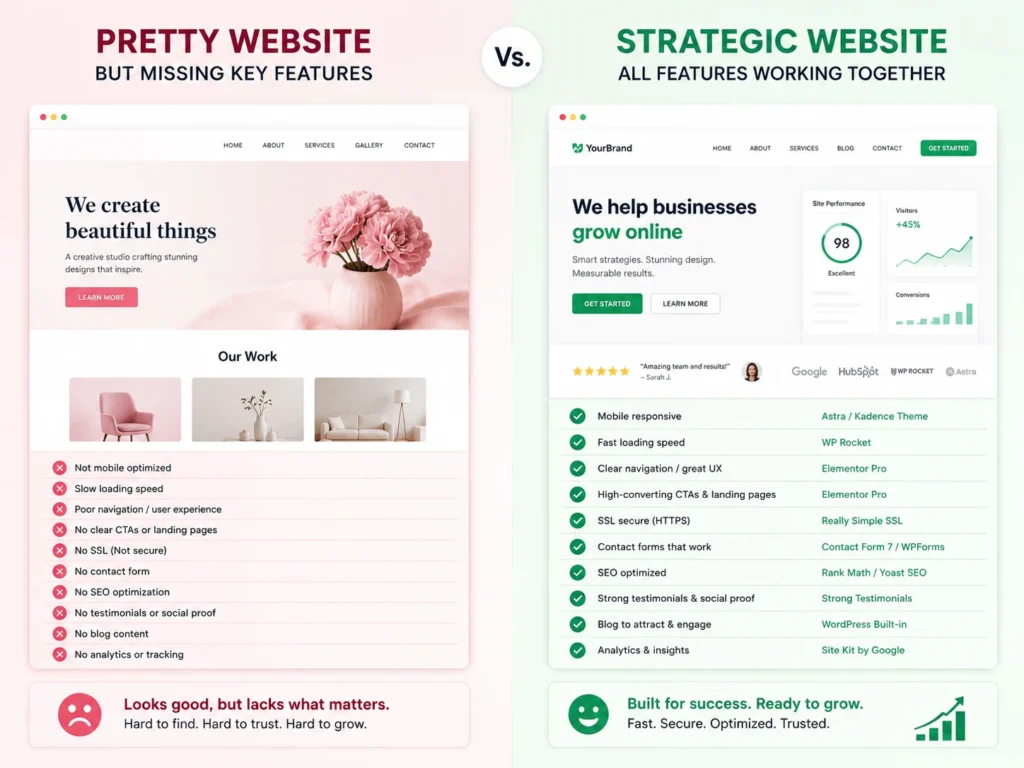
1. Mobile-Responsive Design
How to Implement This on WordPress
Test on real devices — not just browser simulators. Open your website on an actual smartphone after every design change. Moreover, what looks fine in Chrome DevTools sometimes breaks on real devices.
Use Elementor Pro’s responsive controls to adjust padding, font sizes, and column layouts independently for mobile, tablet, and desktop. Consequently, every screen size gets a layout designed specifically for it.
Want to master responsive design on WordPress? Read: How to Create a Fully Responsive Website with Elementor Pro
2. Fast Loading Speed
How to Implement This on WordPress
Install a caching plugin. WP Rocket is the most effective option — activating it immediately applies 80% of performance best practices. Furthermore, it handles page caching, file minification, lazy loading, and database cleanup in one plugin.
Optimize every image before uploading. Use WebP format and compress images with tools like TinyPNG or ShortPixel. Consequently, product and portfolio images load fast without visible quality loss.
Choose quality hosting. Managed WordPress hosting with SSD storage and server-level caching delivers dramatically faster response times than cheap shared hosting. Moreover, poor hosting undermines every other performance optimization you make.
Complete performance guide for WordPress stores: 12 Best Speed Optimization Tips for Your WooCommerce Store
3. Clear Navigation Structure
How to Implement This on WordPress
Limit your main menu to 5-7 items maximum. Every additional item competes for attention and reduces the visibility of your most important pages. Furthermore, use dropdown menus for subcategories rather than crowding the main navigation bar.
Use descriptive menu labels. “Services” is clearer than “What We Do.” Furthermore, “Contact Us” performs better than “Get in Touch” for visitors who scan rather than read. Consequently, clear labels reduce the cognitive effort visitors spend on navigation.
Add a sticky header. A header that stays visible as visitors scroll ensures navigation is always accessible. Moreover, sticky headers with a prominent CTA button increase contact form submissions and phone calls significantly.
4. Strong Calls to Action (CTAs)
How to Implement This on WordPress
Place your primary CTA above the fold. The first screen visitors see without scrolling should contain your headline, a brief value statement, and a clear action button. Furthermore, this captures high-intent visitors before they scroll past or leave.
Use action-oriented button text. “Get a Free Quote” outperforms “Submit.” Furthermore, “Start Your Free Trial” converts better than “Sign Up.” Consequently, specific, benefit-focused button text increases click-through rates measurably.
Repeat CTAs strategically throughout long pages. After explaining a service or showcasing testimonials, add a CTA before moving to the next section. Moreover, visitors who become convinced partway through a page should not need to scroll back to the top to act.
5. SSL Certificate and HTTPS Security
How to Implement This on WordPress
Get free SSL through your hosting provider. Most quality WordPress hosting plans include free SSL certificates through Let’s Encrypt. Furthermore, activation takes under two minutes through your hosting control panel
Install the Really Simple SSL plugin. After enabling SSL at the hosting level, this plugin automatically fixes mixed content issues and redirects all HTTP traffic to HTTPS. Consequently, your entire website switches to secure browsing without manual configuration.
Update your Google Search Console property to the HTTPS version after enabling SSL. Moreover, resubmit your sitemap under the new secured URL so Google indexes your secured pages correctly.
Complete SSL guide for WordPress: Do You Need SSL for Your WordPress Website?
6. Contact Forms and Multiple Contact Options
How to Implement This on WordPress
Install Contact Form 7 or WPForms. Both plugins create professional contact forms without coding. Furthermore, Contact Form 7 is free and lightweight — handling most business contact requirements effectively. WPForms offers a more visual drag-and-drop form builder with conditional logic for complex forms.
Display contact information prominently. Your phone number, email address, and business hours should appear in your header or footer — visible on every page. Moreover, visitors should never need to navigate to a contact page just to find your phone number.
Add a Google Map to your contact page. For businesses with physical locations, an embedded map builds trust and helps local customers find you. Consequently, it also supports local SEO by reinforcing your geographic presence.
Set up contact forms correctly from the start: How to Use Contact Form 7
7. SEO Optimization
How to Implement This on WordPress
Install Rank Math or Yoast SEO. These plugins add meta title and description control, XML sitemap generation, schema markup, and on-page SEO scoring to every post and page. Furthermore, both plugins guide you through optimizing each piece of content before publishing.
Set a focus keyword for every page. Your homepage, service pages, and blog posts should each target a specific search query your potential customers use. Moreover, include that keyword naturally in your page title, first paragraph, headings, and image alt text.
Configure your XML sitemap and submit it to Google Search Console. Consequently, Google discovers and indexes your pages faster — especially important for new websites and after publishing significant new content.
Complete SEO setup guide: How to Install and Set Up Rank Math SEO
8. Social Proof and Testimonials
How to Implement This on WordPress
Add a dedicated testimonials section to your homepage. Place it after your services section and before your call to action. Furthermore, include the customer’s name, business, and photo alongside their testimonial — specificity builds significantly more credibility than anonymous quotes.
Embed Google Reviews directly on your website. Plugins like Widget for Google Reviews display your Google Business Profile reviews automatically. Moreover, third-party reviews carry more credibility than testimonials you have curated yourself. Consequently, embedding them builds trust without requiring manual maintenance.
Create case study pages for significant projects. A detailed case study showing a specific client’s problem, your solution, and measurable results converts skeptical visitors more effectively than any other content type.
9. Blog and Content Section
How to Implement This on WordPress
Publish content your potential customers actually search for. Answer their questions, solve their problems, and explain your industry concepts clearly. Furthermore, use keyword research tools to identify specific topics your target audience searches for regularly.
Organize content with clear categories. Group related articles into logical categories that match how your visitors think about your industry. Moreover, internal linking between related posts keeps visitors reading longer and helps search engines understand your site structure.
Publish consistently rather than frequently. One well-researched, genuinely helpful article per week consistently outperforms three rushed articles that do not answer real questions. Consequently, quality beats quantity for building long-term organic search authority.
10. Analytics and Performance Tracking
How to Implement This on WordPress
Install Google Analytics 4 through the Site Kit plugin. Site Kit connects Google Analytics, Search Console, and PageSpeed Insights directly to your WordPress dashboard. Furthermore, you monitor key performance metrics without leaving your WordPress admin area.
Set up conversion tracking for contact form submissions. Simply knowing how many people visit your website tells you less than knowing how many fill out your contact form or call your phone number. Moreover, conversion tracking reveals which pages and traffic sources actually generate business leads.
Review your data monthly and act on what you find. Analytics become valuable only when you use them to make decisions. Consequently, schedule a monthly review to identify your best-performing content, your highest-converting pages, and the improvements your data suggests.
Essential WordPress Plugins Checklist
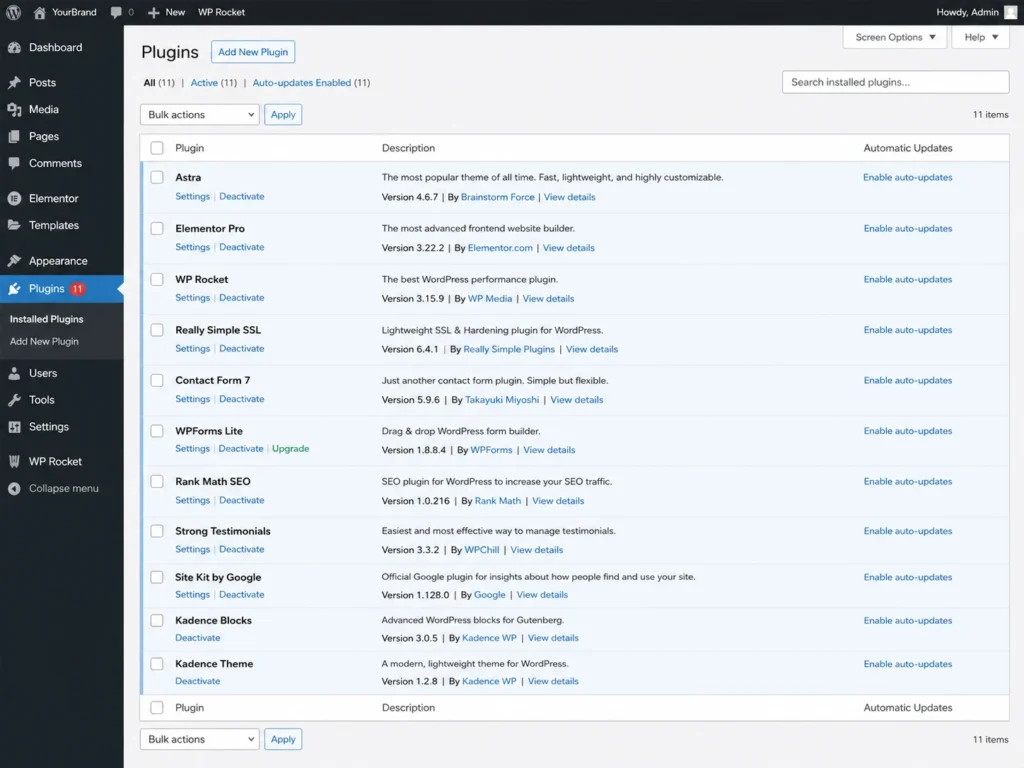
These ten features require the right tools behind them. Here is a quick plugin reference:
| Feature | Recommended Plugin |
|---|---|
| Mobile responsiveness | Astra / Kadence Theme |
| Page speed | WP Rocket |
| Navigation design | Elementor Pro |
| CTAs and landing pages | Elementor Pro |
| SSL | Really Simple SSL |
| Contact forms | Contact Form 7 / WPForms |
| SEO | Rank Math / Yoast SEO |
| Testimonials | Strong Testimonials |
| Blog | WordPress Built-in |
| Analytics | Site Kit by Google |
Understand what all these tools cost together. Read: WordPress Website Cost: An Actual WordPress Price