

If you opened your WordPress dashboard a few years ago and found a completely different editing experience, you were not alone.
WordPress replaced its classic text editor with something entirely new — the Block Editor, commonly known as Gutenberg. Furthermore, the change confused many long-time users who had grown comfortable with the old way of working. Consequently, some returned to the Classic Editor through a plugin, and others simply avoided the new interface without understanding what it offered.
That avoidance has a real cost. The Gutenberg Block Editor is not just a different way to add text. It is a fundamentally more powerful approach to building pages, designing layouts, and managing your entire website’s appearance — all without writing a single line of code.
In this guide, we explain exactly what the WordPress Block Editor is, how it works, what makes it better than the classic approach, and how to use it confidently from your very first session. Moreover, we cover advanced features, useful keyboard shortcuts, and the best plugins that extend Gutenberg’s capabilities further.
Setting up WordPress for the first time? Start here: How to Start a WordPress Website Step by Step
What Is the WordPress Block Editor?
The WordPress Block Editor — officially named Gutenberg — is the default content editor built into WordPress. Furthermore, it replaced the previous TinyMCE-based Classic Editor when WordPress 5.0 launched in December 2018.
The core concept is simple. Instead of writing everything in one large text field, you build content using individual blocks — self-contained units that each handle a specific content type.
What Is a Block?
A block is a single content element. Each block has its own settings, appearance options, and behavior. Furthermore, every piece of content you add to a page exists as its own block that you can move, style, and configure independently.
Common block types include:
- Paragraph — standard body text
- Image — single photo with caption
- Video — embedded or uploaded video
- List — ordered or unordered lists
- Table — rows and columns of data
- Columns — multi-column layouts
- Quote — styled blockquotes
- Button — CTA button with link
- Group — container holding multiple blocks together
- Cover — image or video with overlaid text
Moreover, the block library continues expanding with every WordPress update. Consequently, virtually any content type or layout you need has a dedicated block available — either built into core WordPress or through a block plugin.
A Brief History of Gutenberg
Understanding where Gutenberg came from helps explain why WordPress moved in this direction.
Before December 2018, WordPress used the Classic Editor — a simple rich-text interface similar to Microsoft Word. Furthermore, it worked reliably for basic blog posts but required shortcodes or custom HTML for anything beyond standard text and images. Consequently, creating complex page layouts meant installing page builders like Elementor or Divi as separate plugins.
WordPress 5.0 introduced Gutenberg as the new default editor. Furthermore, the name references Johannes Gutenberg — the inventor of the movable type printing press — reflecting the ambition to transform how content gets created on the web.
Since launch, Gutenberg has evolved through several development phases:
- Phase 1 — Block-based post and page editing (completed)
- Phase 2 — Full Site Editing — designing headers, footers, and templates (largely completed)
- Phase 3 — Real-time collaborative editing (in development)
- Phase 4 — Multilingual support (planned)
Moreover, as of early 2025, Gutenberg has reached version 20.0 — demonstrating the pace of ongoing development. Consequently, features that were limited or missing at launch have matured significantly.
Gutenberg Block Editor vs Classic Editor
Many WordPress users still run the Classic Editor plugin rather than embracing Gutenberg. Furthermore, understanding the genuine differences helps you decide which suits your specific workflow — and whether the switch is worth making.
| Feature | Classic Editor | Block Editor (Gutenberg) |
|---|---|---|
| Content Structure | Single text field | Individual blocks |
| Layout Creation | Requires page builder | Built-in columns and groups |
| Media Handling | Insert via popup | Direct drag and drop |
| Reusable Content | None | Reusable blocks |
| Live Preview | Limited | Real-time |
| Full Site Editing | Not possible | Yes (with block themes) |
| Mobile Editing | Poor | Improved |
| Learning Curve | Minimal | Moderate initially |
| Future Development | Maintenance only | Active development |
The key practical difference is layout capability. Furthermore, Gutenberg lets you create multi-column layouts, add cover sections, group blocks into containers, and control spacing visually — all without a third-party page builder. Consequently, simple to moderately complex page designs no longer require Elementor or Divi for many users.
10 Key Features of the WordPress Block Editor
1: Drag-and-Drop Block Placement
Every block can be dragged to any position on your page. Furthermore, a six-dot handle appears on the left side of any block when you hover over it. Click and drag it to reorder content instantly without cutting, copying, or pasting. Consequently, restructuring a long page takes seconds rather than minutes.
2: Block Patterns
Block patterns are pre-designed content combinations — a hero section, a testimonial layout, a pricing table, or a call-to-action section — that you insert with one click. Furthermore, WordPress includes dozens of built-in patterns and block themes add many more.
Click the + inserter button, select Patterns, and browse by category. Moreover, once inserted, you customize every element within the pattern to match your content and brand. Consequently, complex layouts that previously required a page builder become achievable natively.
3: Reusable Blocks
A reusable block is a block or group of blocks that you save and insert into multiple pages or posts. Furthermore, when you update a reusable block in one place, the change applies everywhere that block appears across your entire website.
This feature suits recurring elements — a newsletter signup section, a contact CTA, a disclaimer, or a promotional banner. Moreover, site-wide updates that previously required editing dozens of individual pages happen in seconds. Consequently, reusable blocks significantly reduce content maintenance time as your website grows.
4: Full Site Editing (FSE)
Full Site Editing extends Gutenberg beyond posts and pages to your entire website design. Furthermore, with a block theme installed, you edit your header, footer, sidebar, page templates, and archive layouts using the same block interface you use for content.
Access Full Site Editing through Appearance → Editor in your WordPress dashboard. Moreover, FSE eliminates the need for a separate theme customizer or child theme for many common design modifications. Consequently, website owners who previously depended on developer help for template changes gain meaningful design independence.
Learn whether a page builder still makes sense alongside Gutenberg. Read: Best Page Builder Plugins for WordPress (Elementor vs Divi vs Gutenberg)
5: Live Typography Controls
Each block includes direct typography controls — font family, size, weight, line height, letter spacing, and text decoration. Furthermore, global styles in the Site Editor let you set default typography across your entire website with consistent application to all blocks simultaneously.
This level of typographic control previously required CSS knowledge or a premium theme with custom font options. Moreover, the visual, real-time feedback makes typography decisions faster and more intuitive. Consequently, non-technical users achieve professional typographic results without touching a stylesheet.
6: Inline Image Editing
Images no longer require opening a separate editor window. Furthermore, clicking any image block reveals crop, rotate, and resize controls directly within the editing interface. Moreover, you drag and drop images straight from your desktop into any image block position. Consequently, the interruption between writing and adding visuals disappears entirely.
7: Group and Container Blocks
The Group block wraps multiple blocks into a single container. Furthermore, you apply background colors, padding, spacing, and border styles to the entire group rather than configuring each block individually.
Row and Stack blocks extend this further — Row arranges blocks horizontally and Stack arranges them vertically with responsive behavior built in. Moreover, nesting groups inside groups creates sophisticated layout structures without custom CSS. Consequently, complex multi-section page designs become achievable through visual configuration alone.
8: Cover Block for Visual Sections
The Cover block places text over a background image or video. Furthermore, you control overlay color, opacity, image focus point, and text alignment directly within the block settings. This creates hero sections, feature highlights, and visual dividers that previously required either a page builder or custom CSS.
9: Column Layouts
The Columns block creates multi-column layouts with configurable ratios. Furthermore, you can set different column widths — 50/50, 70/30, 33/33/33 — and control how columns stack on mobile devices. Moreover, each column accepts any combination of blocks inside it. Consequently, feature comparison sections, service grids, and team member layouts all work natively in Gutenberg.
10: Clean Code Output
Unlike some page builders that generate excessive nested HTML that slows loading speeds, Gutenberg produces clean, semantic HTML. Furthermore, this clean output benefits both search engine crawling and page loading performance.
Moreover, the lightweight code reduces page weight compared to equivalent layouts built with heavy page builders — a meaningful advantage for Core Web Vitals scores. Consequently, Gutenberg-built pages typically perform better on PageSpeed Insights tests than the same content built with complex third-party page builders.
Gutenberg vs. Classic Editor
Feature | Gutenberg | Classic Editor |
Visual Editing | Yes | Limited |
Block-Based Layout | Yes | No |
Plugin Integration | Strong | Strong |
Ease of Use | Modern UI | Simple, but outdated |
Full Site Editing | Supported | Not supported |
Gutenberg Alternatives
Elementor

At its very core, Elementor is an affordable website-building tool, and its free version is one of the best on the market. The basic plan has fewer features than the premium version but still assures a good experience building a beautiful website through simple drag-and-drop features. Elementor is currently one of the best WordPress builders to help create sites easily and fast. It is among the most popular page builders, with over four million active installations. The user interface is quite simple to learn, yet it’s robust in features – this makes it a preference for many users.
Beaver Builder
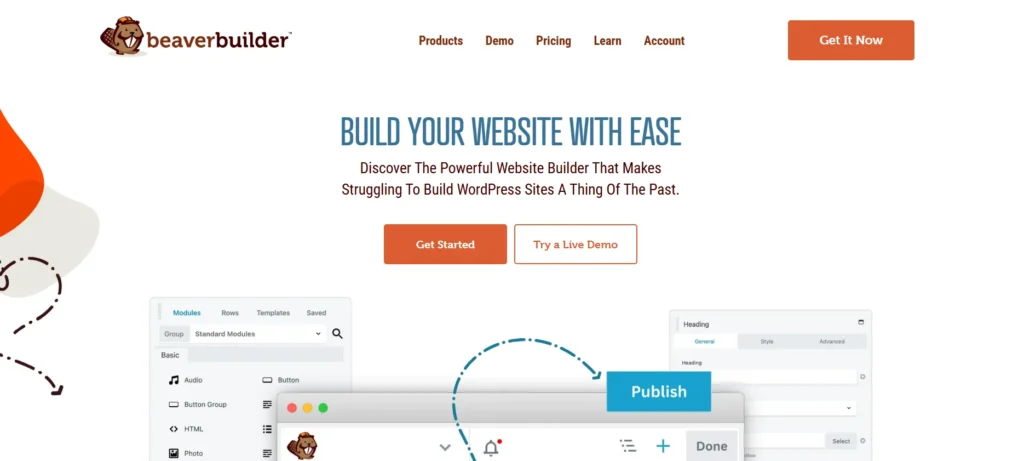
Beaver Builder is a remarkable beginner-friendly page builder for learning to build and customize a WordPress website. This page builder has over 500,000 users with active installations of over 1,000,000; it’s super easy to use and very friendly. Having been developed by a former agency in the business of building websites on WordPress, Beaver Builder strives to make further this process easier and more efficient. The front-end editor is live and works in real time, so you’ll be able to see any changes while making them without ever having to refresh the page. In its extensive library, there are professionally designed, pre-made, responsive, and easily customizable templates that can be imported to your site with just a few clicks. The rest of the clean code makes it even easier to build friendly SEO websites.
Conclusion
The WordPress Block Editor (Gutenberg) is more than just an editor — it’s the future of WordPress. With powerful customization, intuitive UI, and continued improvements, Gutenberg empowers creators to design beautiful websites with minimal effort. Whether you’re a blogger, business owner, or developer, now is the perfect time to explore what Gutenberg has to offer.
Frequently Asked Questions (FAQs)
Can I still use the Classic Editor?
Yes — the Classic Editor plugin restores the previous editing experience and is supported until at least 2025. Furthermore, a Classic Block exists within Gutenberg for users who want legacy editing within specific posts. However, investing in learning Gutenberg pays long-term dividends as WordPress development focuses entirely on the block-based future. Consequently, avoiding Gutenberg indefinitely becomes increasingly limiting as new WordPress features build exclusively on the block architecture.
Does Gutenberg work with all WordPress themes?
Most modern themes are fully compatible with Gutenberg. Furthermore, block themes designed specifically for Full Site Editing unlock the complete Gutenberg feature set including the Site Editor. Older themes may not support FSE but still work with Gutenberg for post and page editing. Consequently, users wanting the full Gutenberg experience benefit from switching to a modern block theme.
Is Gutenberg suitable for complex page designs?
For moderate complexity — multi-column layouts, hero sections, feature grids, and testimonial sections — yes. Furthermore, adding a block plugin like Spectra or Kadence Blocks extends this significantly. However, very complex interactive designs with custom animations, advanced filtering, or highly unique custom functionality may still benefit from dedicated page builders. Consequently, Gutenberg handles most standard business website design needs effectively while page builders retain advantages for specialized complex projects.
What is the WordPress Block Editor used for?
The WordPress Block Editor (Gutenberg) is used to create and design all content in WordPress — blog posts, pages, landing pages, and with Full Site Editing, the entire website template including headers, footers, and archive pages. Furthermore, it replaces both the Classic Editor for content and partially replaces third-party page builders for layout design.
Is Gutenberg the same as Elementor?
No — they are different tools serving overlapping purposes. Gutenberg is WordPress’s built-in block editor included with every WordPress installation at no cost. Furthermore, Elementor is a third-party page builder plugin with more advanced design controls, a larger template library, and additional features available in its Pro version. Consequently, some users use Gutenberg for basic pages and Elementor for complex landing pages on the same website.
Can beginners learn Gutenberg easily?
Yes — Gutenberg has a moderate initial learning curve that most users overcome within a few editing sessions. Furthermore, the / shortcut for finding blocks, the visual drag-and-drop interface, and the real-time preview make the learning process intuitive. Moreover, the official WordPress documentation provides block-specific guides for every core block. Consequently, most beginners feel comfortable with everyday Gutenberg editing within their first few days of use.
Does the Block Editor affect website speed?
Gutenberg’s clean code output generally improves page speed compared to heavy page builders. Furthermore, it loads only the CSS and JavaScript required for blocks actually used on each page. Consequently, pages built entirely in Gutenberg without heavy plugins typically score well on Google PageSpeed Insights and Core Web Vitals assessments.
Is Gutenberg free?
Yes — completely. The Block Editor is included in every WordPress installation at no cost. Furthermore, it receives regular updates as part of WordPress core without any separate subscription or license fee. Consequently, every WordPress website owner has access to the full Gutenberg feature set regardless of their budget.