Every WordPress site starts the same way — a fresh install, a default theme, and a login page that looks exactly like a million others.
Furthermore, what separates a genuinely professional, well-run WordPress website from an amateur-feeling one rarely comes down to one dramatic decision. It comes down to a series of small, deliberate tweaks — the kind that experienced developers apply almost automatically but new site owners rarely discover on their own.
Some of these changes are small but game-changing, like properly optimizing images for speed. Furthermore, others — like using a staging site before major updates — can genuinely save you from disaster. Consequently, the tips in this guide come from real-world experience building and maintaining WordPress sites, not theoretical best practices.
In this guide, we walk through the best WordPress tips for successfully developing your site — covering security, speed, design polish, and the daily workflow habits that make managing WordPress genuinely easier. Furthermore, whether you are building your first site or refining one you have run for years, these practical tips give you immediate, actionable improvements.
Security Tips Every WordPress Site Owner Needs
Security is not glamorous, but it is the foundation everything else depends on. Furthermore, most WordPress security problems come from a handful of preventable mistakes rather than sophisticated attacks.
Ditch the "Admin" Username Immediately
If your WordPress administrator username is still “admin,” you are making life far too easy for attackers. Furthermore, “admin” is the first username automated brute-force attacks guess, since so many sites never bother changing it from the default.
Since WordPress does not let you directly edit an existing username, fix this by creating a new administrator account with a unique username under Users → Add New User. Furthermore, log in with that new account, then delete the old “admin” user — WordPress will ask what to do with any content linked to that account, so select “Reassign” to your new admin username to avoid losing any existing posts or pages.
Customize Your Login Page to Look Like Yours
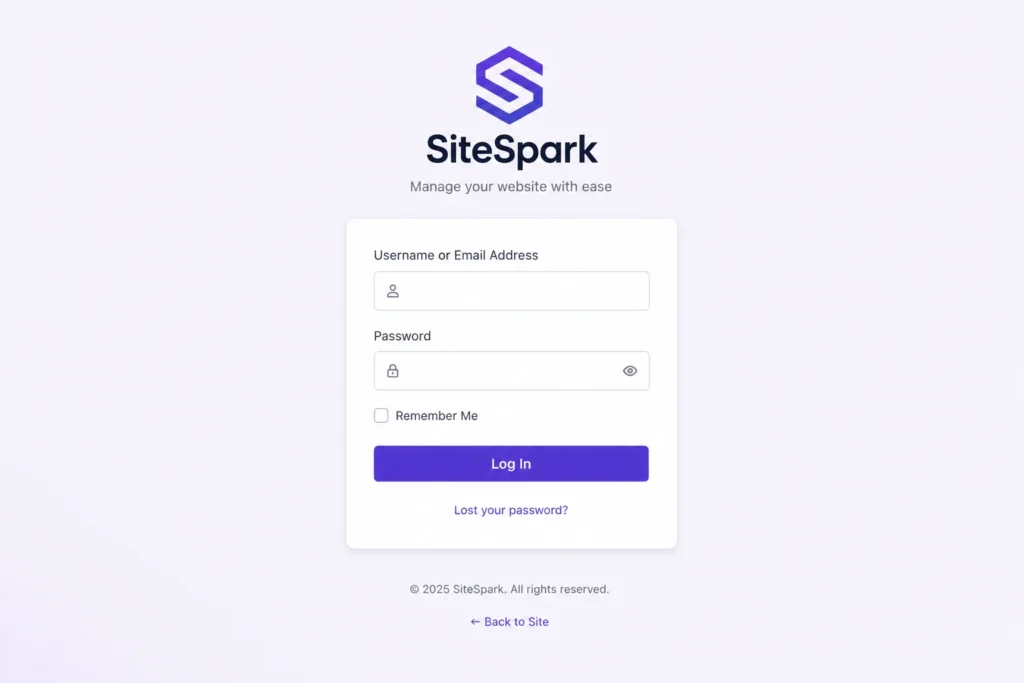
Your login page is the front door to your entire site. Furthermore, if it still displays the generic default WordPress branding, it signals an unfinished, unprofessional site — especially to clients or team members who access it regularly.
A simple login branding plugin lets you upload your own logo, adjust colors, and customize the form styling in just a few clicks. Consequently, this small change makes an outsized difference in how polished your site feels from the very first interaction.
Enable Two-Factor Authentication on Every Admin Account
A username and password alone is no longer sufficient protection for administrator accounts. Furthermore, enabling two-factor authentication adds a second verification step — typically a code from a phone app — that blocks unauthorized access even if a password gets compromised through a data breach elsewhere.
Use Quick Access Shortcuts Without Compromising Security
Instead of typing out your full domain followed by /wp-admin every time, you can simply add /admin or /login to the end of your domain, and WordPress automatically redirects to the login page. Furthermore, this small convenience saves genuine time across hundreds of logins without creating any additional security risk, since it is simply a shortcut rather than a bypass.
Speed and Performance Tips That Actually Matter
Speed affects everything — visitor patience, conversion rates, and search rankings simultaneously. Furthermore, a handful of specific, high-impact changes deliver most of the performance improvement most sites need.
Optimize Every Image Before It Ever Gets Uploaded
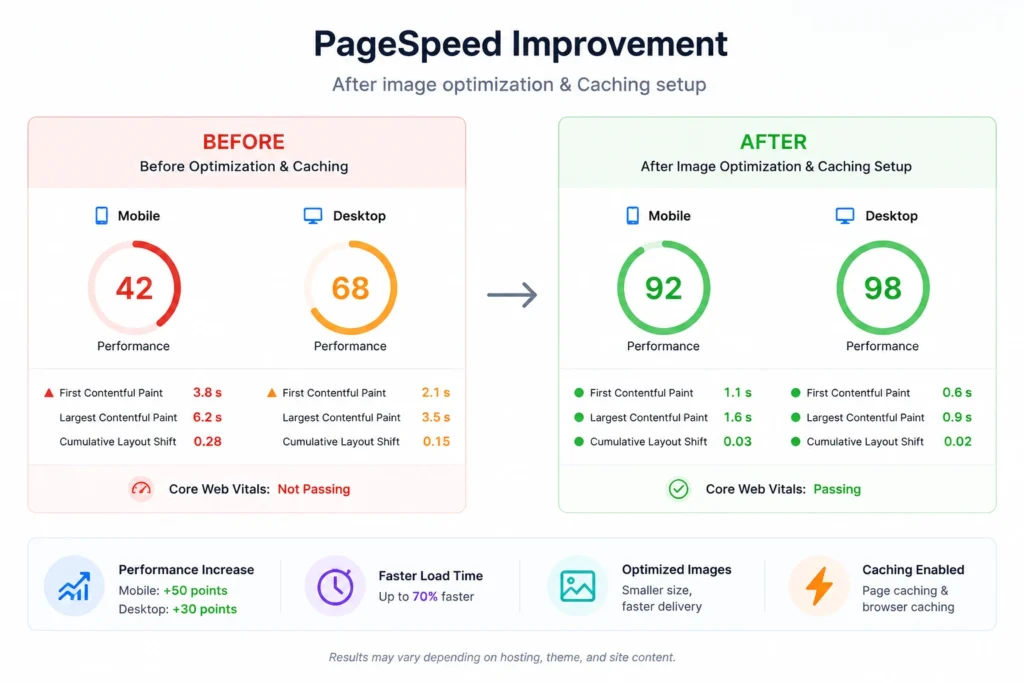
Unoptimized images remain the single most common cause of slow WordPress sites. Furthermore, compressing images before uploading — through tools like TinyPNG or a dedicated WordPress image optimization plugin — reduces file sizes dramatically without any visible quality loss to the average visitor.
Install a Genuine Caching Solution
Caching plugins store pre-built versions of your pages so your server does not rebuild them from scratch for every single visitor. Furthermore, this single change often delivers the most dramatic, immediately visible speed improvement of any optimization on this list.
Choose Hosting That Actually Supports Your Growth
Your hosting provider sets the ceiling for every other performance optimization. Furthermore, budget shared hosting works fine for a brand-new, low-traffic site, but becomes a genuine bottleneck the moment real traffic arrives. Consequently, choosing quality WordPress-specific hosting from the start avoids a disruptive mid-growth migration later.
Design and Professional Polish Tips
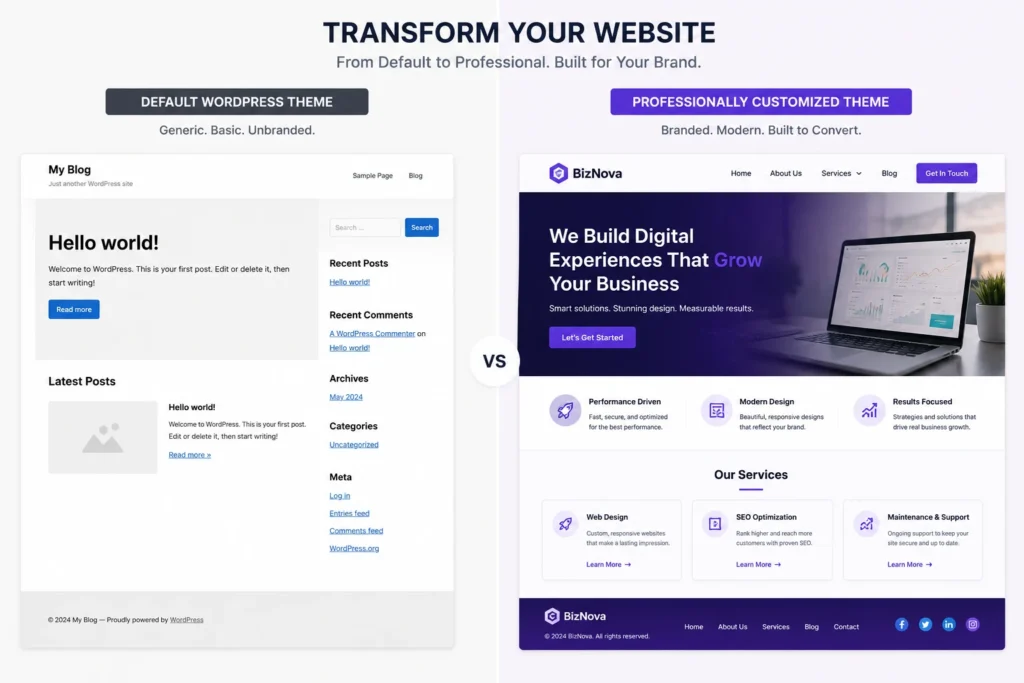
The gap between a site that “looks like WordPress” and one that looks like a genuinely custom, professional website usually comes down to a handful of deliberate design decisions.
Install a Custom Theme From the Start
It is tempting to browse the free theme section on WordPress.org and settle for whatever looks acceptable. Furthermore, most free themes are functional but visually generic — which is understandable, since they are free, but it means your site risks blending into the enormous crowd of other sites using the exact same template.
Investing in a premium, well-coded theme — or working with a developer on custom design — gives your site a distinct visual identity that free themes rarely achieve. Furthermore, this investment pays back through improved credibility with every visitor who lands on your homepage.
Use a Page Builder That Matches Your Skill Level
The right page builder determines how much creative control you genuinely have over your site’s design, without needing to write custom code for every change. Furthermore, different builders suit different skill levels and project complexity — choosing the wrong one either limits your options or overwhelms you with unnecessary complexity.
Keep Your Visual Branding Consistent Everywhere
Consistent colors, fonts, and imagery style across every page — not just the homepage — signal genuine professionalism. Furthermore, inconsistency between pages, even subtle inconsistency most visitors cannot articulate, quietly undermines the trust a polished website is meant to build.
Dashboard and Workflow Efficiency Tips
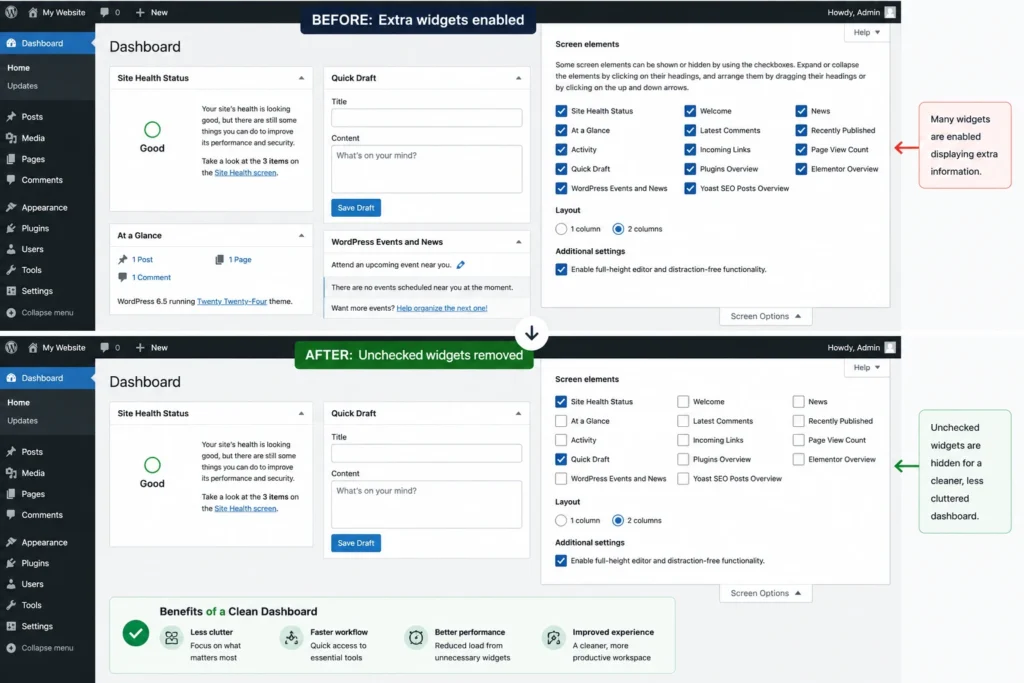
The WordPress dashboard is your command center, but by default it can feel genuinely cluttered — full of widgets, notifications, and menu items you rarely use. Furthermore, small tweaks here save meaningful time across every single login.
Customize Your Dashboard to Remove Clutter
You will find a “Screen Options” tab at the top right of your dashboard. Furthermore, clicking it reveals checkboxes for every dashboard widget currently displayed. If you do not need the “Welcome” message or site health status staring at you every day, simply uncheck them and reclaim that space for the information you actually use.
Organize Your Media Library Before It Becomes Unmanageable
A media library with hundreds of unlabeled, randomly named images becomes genuinely difficult to navigate later. Furthermore, establishing a consistent file naming convention and using folders (through a media organization plugin) from the beginning saves significant frustration as your content library grows.
Know When a Fresh Reinstall Makes Sense
Sometimes, no amount of troubleshooting fixes a genuinely stubborn issue. Furthermore, if your site starts behaving strangely after a bad update, or corrupted core files are causing persistent, unexplainable errors, reinstalling WordPress core files can resolve problems that hours of individual debugging cannot. Consequently, this is not a failure — it is simply the most efficient fix for certain specific categories of problems.
Content and SEO Tips for Long-Term Success
A beautifully designed WordPress site still needs proper SEO configuration to actually attract visitors through organic search rather than relying entirely on paid traffic or existing audience.
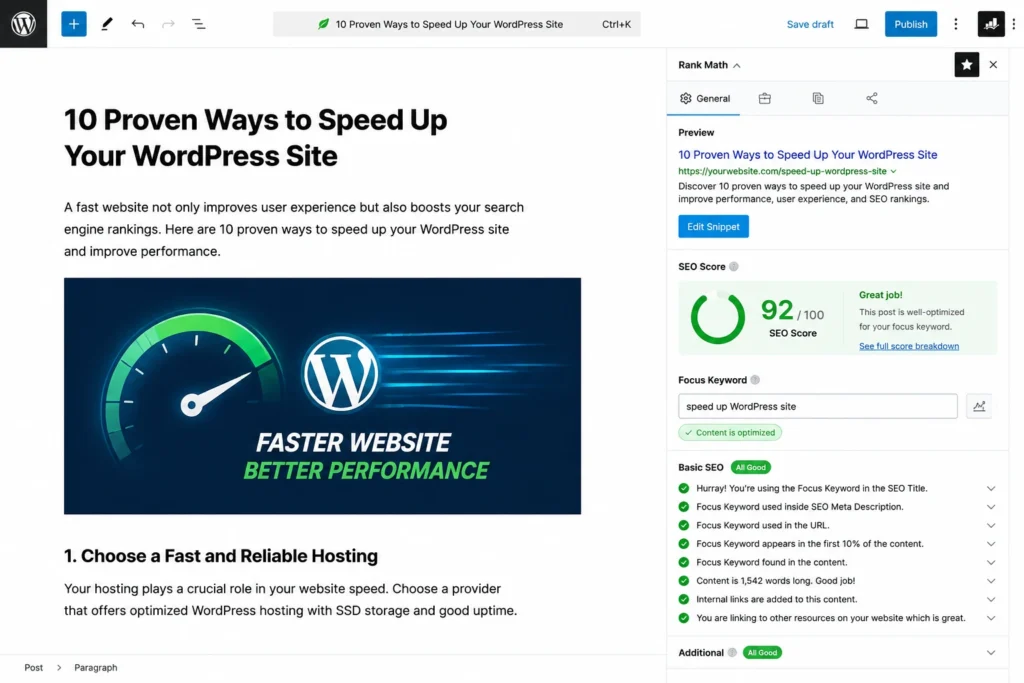
Set Up an SEO Plugin From Day One
Install and configure Rank Math or Yoast SEO before you publish significant content, not after. Furthermore, these plugins handle meta titles, descriptions, XML sitemaps, and schema markup — the technical foundation every page needs to compete effectively in search results.
Write for Your Actual Audience, Not Just Search Engines
Content stuffed with keywords but written awkwardly for algorithms rather than humans consistently underperforms genuinely helpful, naturally written content. Furthermore, Google’s ranking systems have become sophisticated enough to reward content that actually serves reader intent over content that merely repeats target phrases mechanically.
Use Internal Linking Deliberately
Linking related posts and pages to each other helps visitors discover more of your content while also helping search engines understand your site’s structure. Furthermore, every new piece of content is an opportunity to link back to relevant existing pages, building a genuinely interconnected content library over time rather than isolated, disconnected posts.
Backup and Maintenance Tips That Prevent Disaster
The tips in this section rarely feel urgent until the exact moment they become critically important — which is precisely why they deserve attention before disaster strikes rather than after.
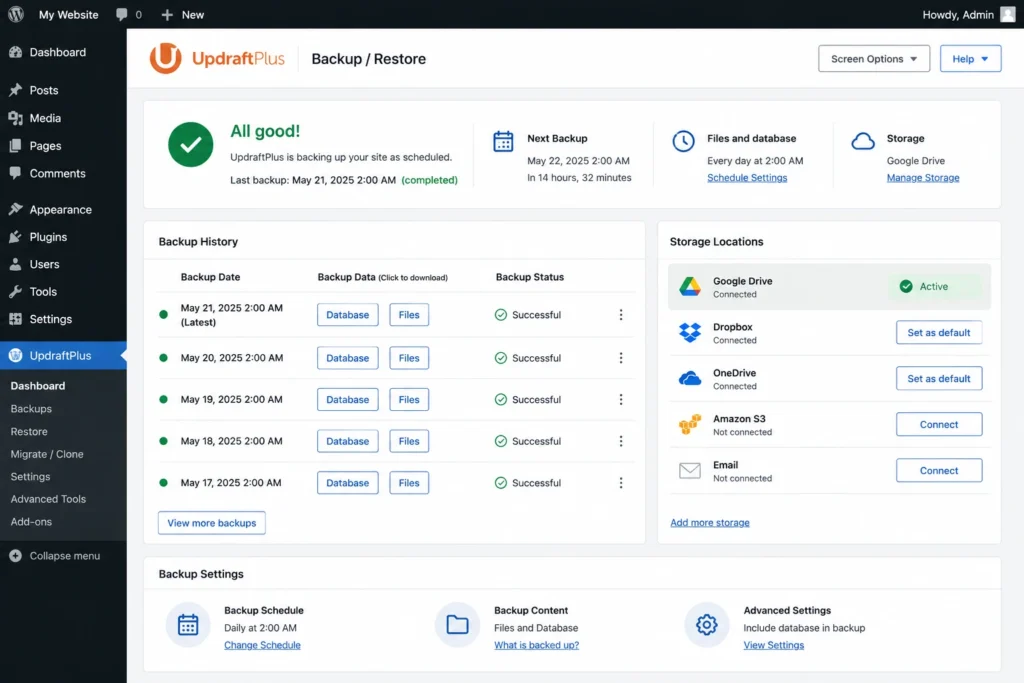
Set Up Automated Backups and Actually Test Them
Install a reliable backup plugin and configure it to save daily copies automatically to cloud storage separate from your hosting server. Furthermore, most site owners skip the crucial follow-up step — actually testing that a backup restores correctly by trying it on a staging environment periodically. Consequently, many people discover their backup process was broken only after an actual disaster, when it is far too late to fix.
Always Test Major Changes on a Staging Site First
A staging environment is essentially a private practice copy of your website, letting you test new plugins, theme updates, and design changes without any risk to what visitors currently see. Furthermore, when a major WordPress version releases, testing it safely on staging first means you catch compatibility problems before they ever affect your live site.
Keep Everything Updated on a Consistent Schedule
Set aside a regular time each week specifically for reviewing and applying updates to WordPress core, your theme, and your plugins. Furthermore, most site crashes happen because something got outdated and quietly stopped working correctly alongside everything else — a problem entirely preventable through consistent, routine maintenance.
Conclusion
None of the tips in this guide require advanced technical expertise. Furthermore, what they require is consistency — applying them deliberately rather than hoping your WordPress site sorts itself out through default settings alone.
Security tips protect what you have built. Furthermore, speed tips keep visitors engaged rather than frustrated. Design tips build the credibility that turns visitors into customers. Workflow tips save you genuine time across every single login. SEO tips ensure people actually find your site. Maintenance tips prevent the disasters that cost far more to fix than to prevent.
Moreover, every one of these tips comes from real-world experience managing actual WordPress sites — not theoretical best practices disconnected from practical reality. Consequently, applying them consistently, even a few at a time, compounds into a genuinely more professional, reliable, and successful WordPress website.
Therefore, start with the security basics today. Add speed optimization this week. Build the remaining habits into your regular routine. Your WordPress site becomes exactly what it should be — a polished, dependable asset that works as hard as you do.
Frequently Asked Questions (FAQs)