You know exactly what result you want. Furthermore, you know Photoshop can technically achieve it. However, getting there manually means dragging guides pixel by pixel, masking hair strands one by one, or repeating the same retouching steps across two hundred photos.
This is where the right plugin changes everything. Photoshop plugins are tools built by third-party developers that extend what Photoshop can do natively. Furthermore, they add automation, AI assistance, and specialized features that would otherwise take hours of manual work. Consequently, the difference between a designer using the right plugins and one without them is not skill — it is speed and consistency.
In this guide, we cover the top 10 Photoshop plugins that genuinely transform how designers and photographers work. Moreover, each one solves a specific, common frustration rather than adding features nobody actually needs.
What Are Photoshop Plugins?
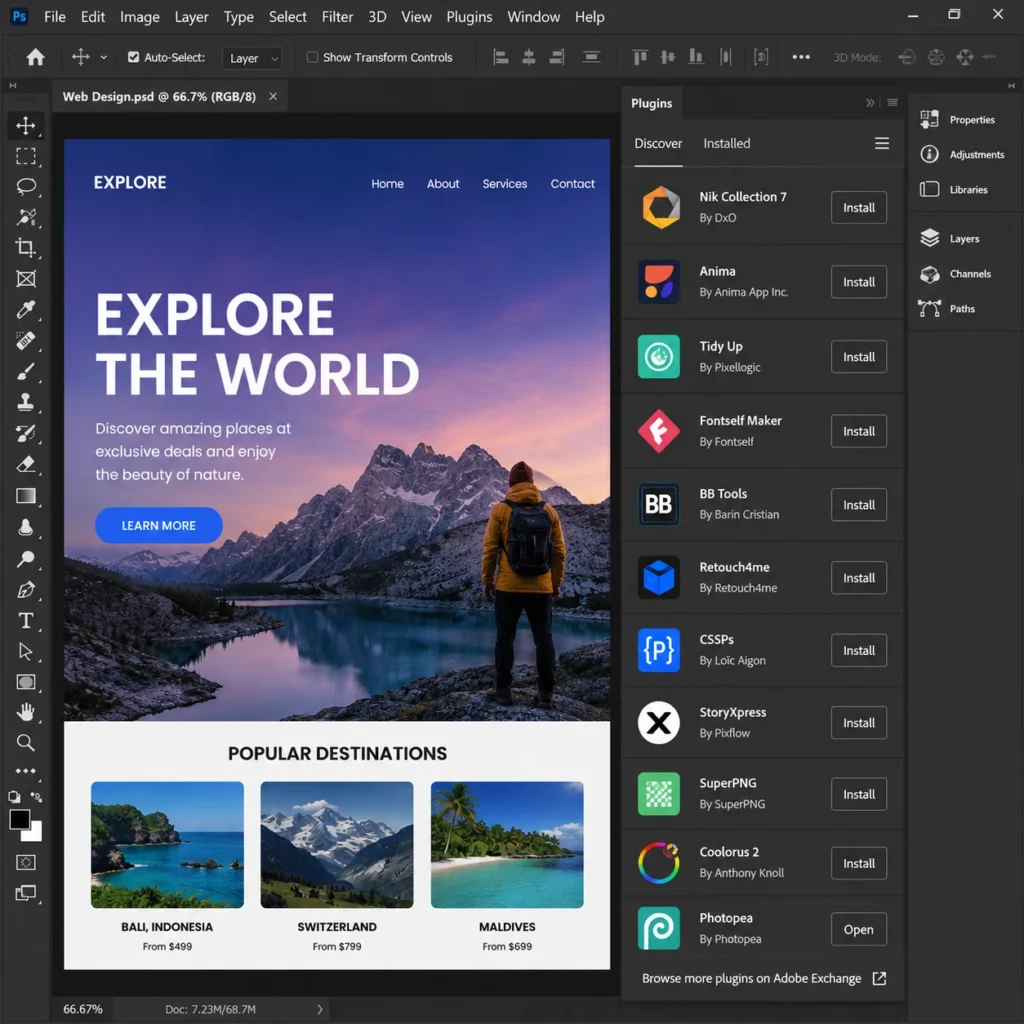
Photoshop plugins are third-party extensions that add new tools, automation, and capabilities to standard Photoshop. Furthermore, they integrate directly into the Photoshop interface — appearing as panels, menu options, or workspace tools rather than separate applications you switch between.
Using plugins, designers customize their workflow around their specific needs. Moreover, many plugins handle tasks that would otherwise require manual repetition or specialized technical knowledge — color matching, precise masking, grid creation, and AI-powered retouching all become significantly faster.
Why Plugins Matter More in 2026
Adobe’s shift to the modern UXP architecture has changed the plugin landscape significantly. Furthermore, many older plugins built on legacy systems no longer function properly. Consequently, the plugins worth using today are built specifically for current Photoshop versions — faster, more stable, and better integrated than their predecessors.
Moreover, AI-driven tools have become genuinely capable rather than gimmicky. Therefore, several plugins on this list use artificial intelligence to deliver results that previously required advanced manual skill.
Top 10 Photoshop Plugins for a Better Workflow
1. GuideGuide — Perfect Grids in Seconds
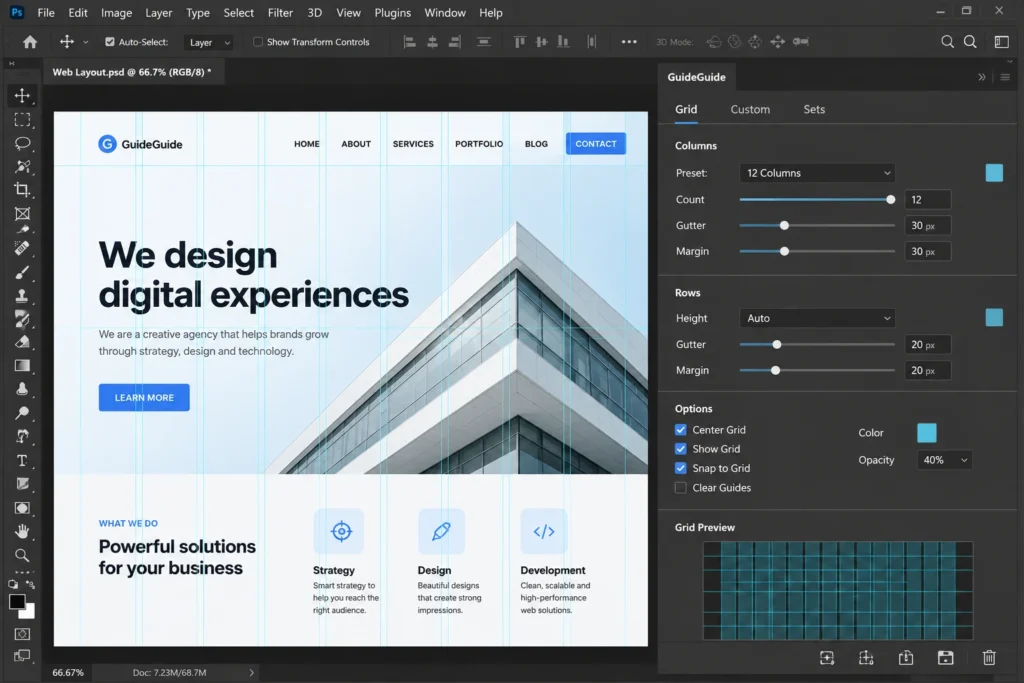
Before any serious layout work begins, you need a solid grid. Furthermore, manually dragging rulers and calculating column widths wastes time that should go toward actual design work.
GuideGuide eliminates this tedium completely. With pixel-perfect precision, you create rows and columns, find midpoints, and generate grids based on any selected element. Moreover, you save your favorite grid configurations and reuse them across future projects instantly.
Best for: Layout designers, web designers, and anyone working with structured compositions.
Pricing: €9–€39 per year, depending on the tier.
2. Luminar — AI-Powered Photo Editing
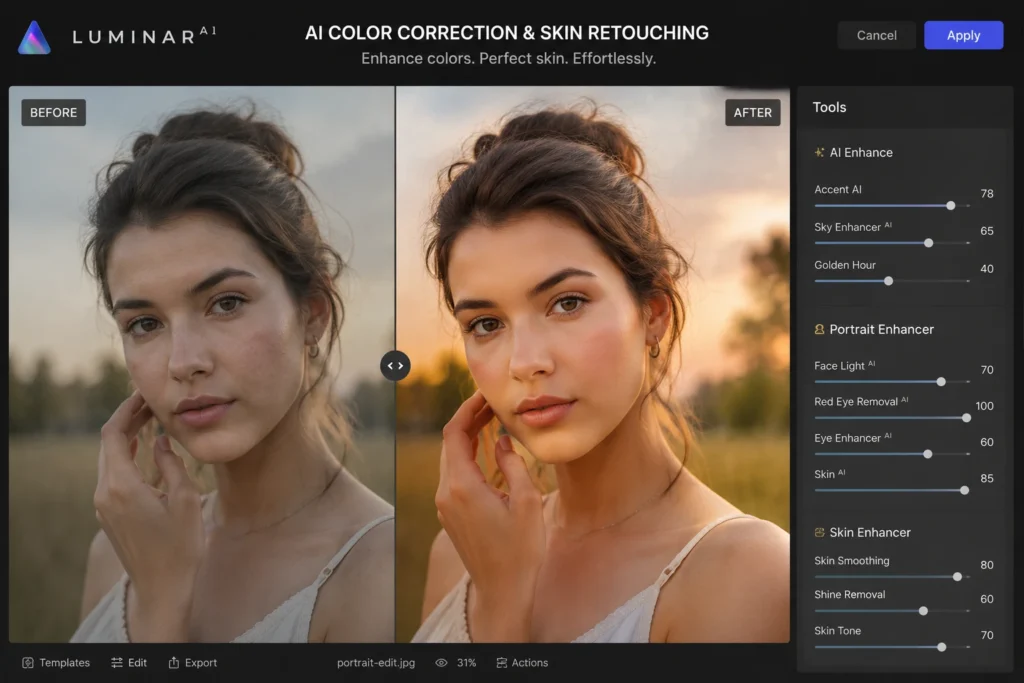
Luminar brings genuinely capable artificial intelligence directly into your Photoshop workflow — either as a plugin or a standalone application. Furthermore, it handles color correction, contrast adjustments, object removal, and skin retouching in just a few clicks.
What separates Luminar from earlier AI tools is result quality. The output feels natural rather than over-processed. Consequently, photographers use it confidently on client work without worrying about that artificial “AI-edited” look that cheaper tools often produce.
Best for: Photographers who need fast, natural-looking enhancements without manual pixel-level work.
Pricing: Annual subscription or perpetual lifetime license available.
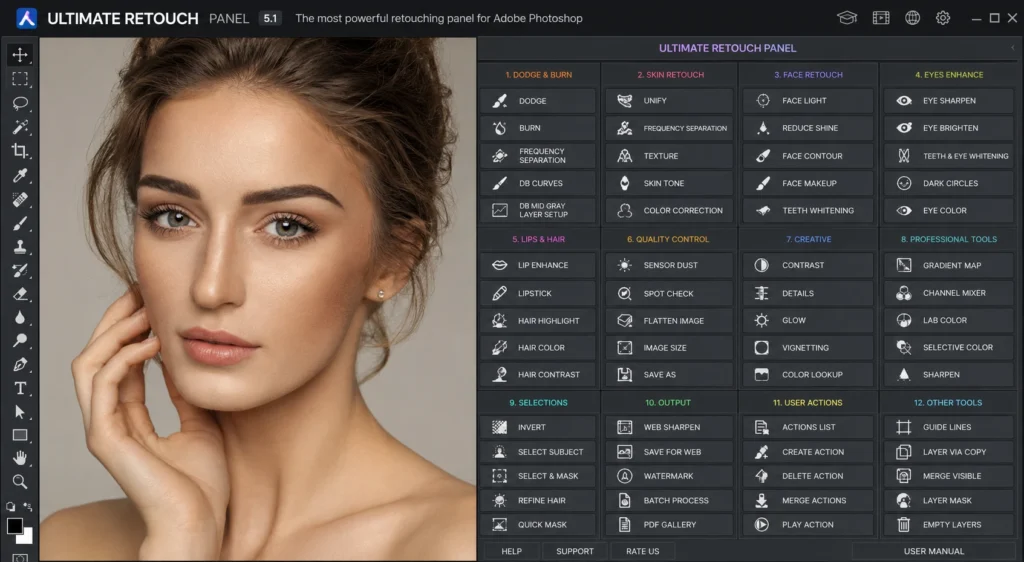
3. Ultimate Retouch Panel — Professional Retouching at Scale
Photoshop’s built-in retouching tools are capable. However, professional photographers quickly hit their limits when working on volume projects.
Ultimate Retouch Panel adds over 200 features, including 30+ advanced tools for precise, localized adjustments. Furthermore, it is specifically designed for portrait and fashion photographers who need consistent, high-quality results across hundreds of images rather than just one hero shot.
Best for: Portrait and fashion photographers handling high-volume retouching work.
4. Shutterstock Extension — Stock Images Without Leaving Photoshop
Incorporating stock images into a project often means switching between browser tabs, downloading files, and discovering they do not work only after import. Furthermore, this back-and-forth interrupts creative flow significantly.
The Shutterstock extension lets you search, preview, and license royalty-free images directly from your Photoshop workspace. Moreover, you find what you need and place it instantly — no tab-switching, no guessing whether an image will fit before you have already downloaded it.
Best for: Designers who frequently need stock imagery integrated into compositions.
Pricing: Pay-per-image or subscription based on your Shutterstock plan.
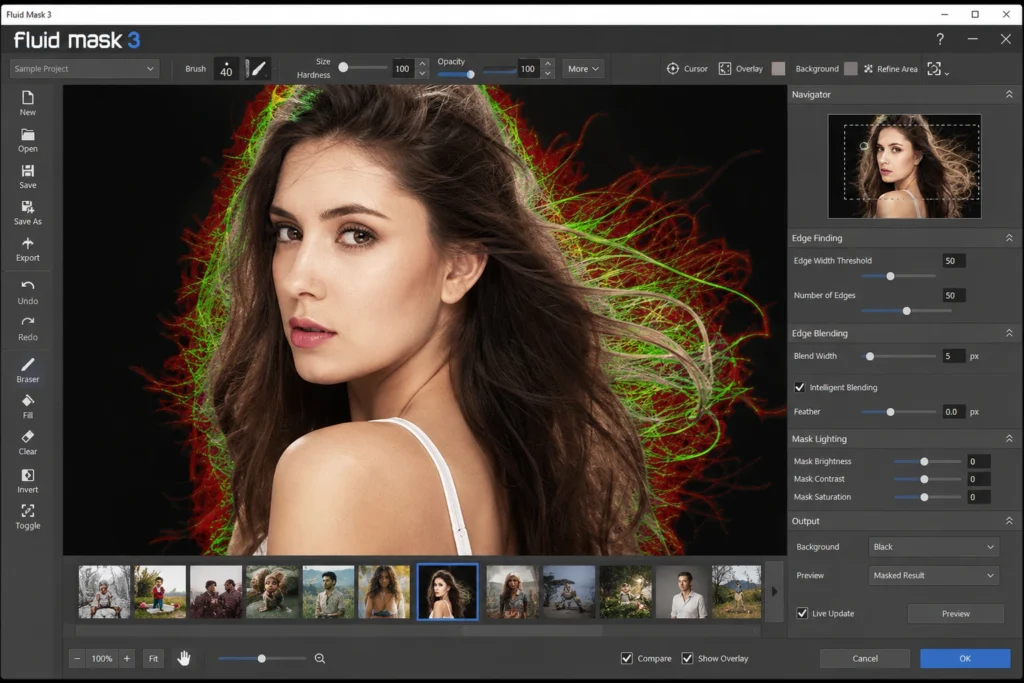
5. Fluid Mask 3 — Precision Masking Made Easy
Masking complex subjects — especially hair, fur, or intricate details — ranks among the most time-consuming tasks in Photoshop. Furthermore, manual masking often produces rough edges that require extensive cleanup.
Fluid Mask 3 simplifies this process dramatically. It delivers cleaner edges and more accurate masks in a fraction of the time manual masking requires. Consequently, designers working with portraits, product photography, or compositing save hours on every project involving complex subject isolation.
Best for: Photographers and compositors handling hair, fur, or fine-detail masking regularly.
Pricing: €79 (excluding tax) — a real investment, but the precision justifies the cost.
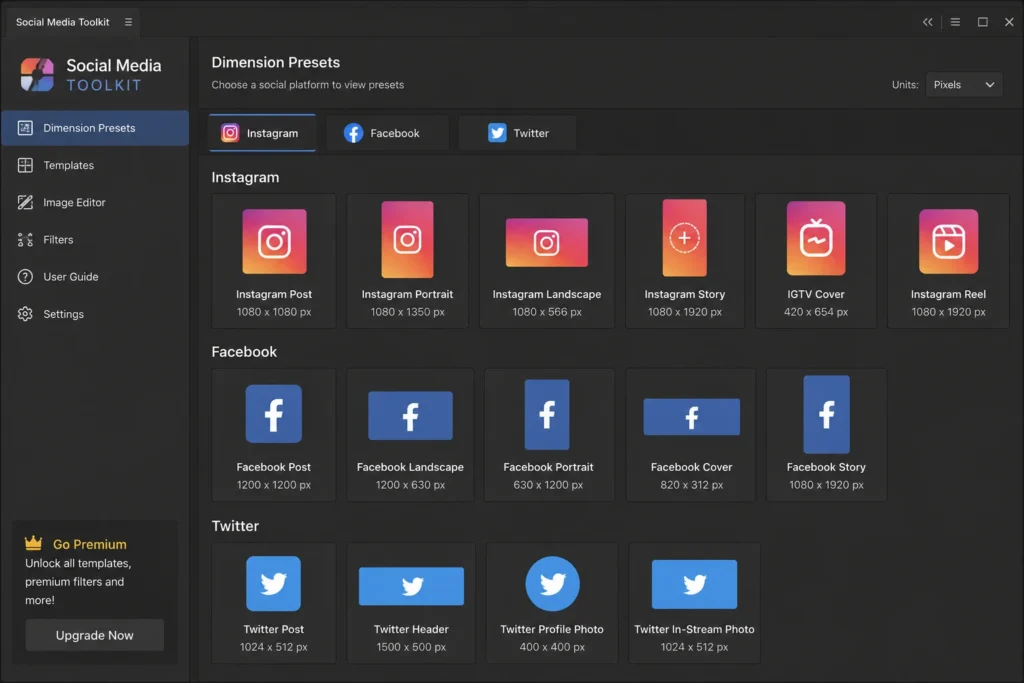
6. Social Media Toolkit — Perfect Dimensions Every Time
Designers working on social media projects know the frustration well — finding the correct dimensions for each specific platform consumes time that should go toward actual creative work.
Social Media Toolkit solves this directly within Photoshop. Furthermore, it implements property changes to achieve perfect width and length requirements for every major social platform. Moreover, it includes advanced options for platform-specific variations — Facebook alone has different dimension requirements depending on the exact post type.
Best for: Social media designers and content creators producing platform-specific graphics regularly.
7. StockSolo — Find Images Without Leaving Your Workspace
Searching multiple stock photo websites to find the right image wastes valuable creative time. Furthermore, StockSolo addresses this by integrating directly into Photoshop, letting you search across top royalty-free platforms without leaving your workspace.
The plugin offers genuine versatility — millions of images across virtually any category. Moreover, every image comes available in high resolution, so you edit and resize without ever risking quality loss.
Best for: Designers who regularly need niche-specific stock images for varied projects.
8. Color Designer — Build Color Palettes Visually
Choosing the right colors directly within Photoshop’s standard interface feels limited and confusing. Furthermore, Color Designer solves this by letting you build complete color sets — shades, tints, and complementary combinations — without leaving your project.
This matters more than it initially seems. Consistent, well-chosen color palettes elevate even simple designs significantly. Moreover, having a dedicated color tool removes the guesswork that often derails otherwise strong compositions.
Best for: Designers who want faster, more confident color decisions within their existing workflow.
9. Topaz Sharpen AI — Recover Detail in Soft Images
Every photographer eventually faces an image that is slightly out of focus or affected by camera shake — too valuable to discard, but not sharp enough to use as-is.
Topaz Sharpen AI uses machine learning specifically trained to distinguish real detail from noise. Furthermore, it recovers clarity in soft images far more effectively than Photoshop’s native sharpening tools. Consequently, photographers salvage shots that would otherwise go straight to the trash.
Best for: Photographers who need to rescue slightly soft or motion-blurred images.
Pricing: One-time purchase, typically around $79–99.
10. CSS Hat — Instant CSS Export for Web Designers
Web designers working in Photoshop face a recurring challenge — translating visual design decisions into accurate CSS code for developers. Furthermore, manually calculating gradients, shadows, borders, and spacing values introduces errors and wastes significant time.
CSS Hat generates clean, accurate CSS code directly from your Photoshop layers. Moreover, it handles gradients, box shadows, text styles, and border properties automatically — letting designers hand developers precise, ready-to-use code instead of approximate visual references.
Best for: Web and UI designers who collaborate directly with developers on implementation.
Pricing: One-time purchase, typically around $35.
Quick Comparison: All 10 Plugins at a Glance
| Plugin | Best For | Pricing |
|---|
| GuideGuide | Grid and layout precision | €9–€39/year |
| Luminar | AI photo enhancement | Subscription or lifetime |
| Ultimate Retouch Panel | High-volume portrait retouching | $29 |
| Shutterstock Extension | In-app stock image search | Pay-per-image / subscription |
| Fluid Mask 3 | Complex hair and fur masking | €79 |
| Social Media Toolkit | Platform-specific dimensions | Free |
| StockSolo | Multi-platform stock search | Free |
| Color Designer | Palette and color building | Free |
| Topaz Sharpen AI | Recovering soft, blurry images | $79–99 |
| CSS Hat | CSS export for web design | $35 |
Furthermore, notice that four of these plugins are completely free. Consequently, you can meaningfully upgrade your workflow today without spending anything — and add paid tools selectively as specific project needs justify the investment.
How to Choose the Right Plugins for Your Workflow
Identify Your Biggest Time Drain First
Before installing every plugin on this list, identify what specifically slows your workflow down most. Furthermore, a photographer spending hours on hair masking benefits enormously from Fluid Mask 3, while a web designer translating mockups to code gets far more value from CSS Hat.
Consequently, start with one or two plugins that solve your most frequent frustration rather than installing everything at once.
Start Free, Then Invest Strategically
Social Media Toolkit, StockSolo, and Color Designer cost nothing and deliver immediate workflow improvements. Furthermore, testing these free options first helps you understand which type of automation genuinely fits your working style before committing budget to premium tools.
Moreover, once you identify a recurring, time-consuming task that a paid plugin solves elegantly, the investment typically pays for itself within the first few projects through time saved alone.
Consider Your Project Type
Portrait and fashion photographers benefit most from Ultimate Retouch Panel and Fluid Mask 3. Furthermore, social media and content creators get the most value from Social Media Toolkit and StockSolo. Moreover, web and UI designers should prioritize GuideGuide and CSS Hat. Consequently, match plugin selection to your actual project type rather than installing tools designed for entirely different specialties.
Conclusion
Photoshop remains an extraordinarily powerful tool. However, its true potential unlocks fully only when paired with the right plugins for your specific workflow.
Whether you need pixel-perfect grids, AI-powered retouching, precise masking, or instant CSS export — a plugin on this list addresses that exact need. Furthermore, four of these tools cost nothing, meaning you can start improving your workflow today without spending a single rupee.
Therefore, do not try to install everything at once. Identify your biggest workflow frustration, find the plugin that solves it directly, and build from there. Moreover, each plugin you add strategically — rather than randomly — compounds your speed and consistency over time.
The designers and photographers who work fastest are not necessarily more skilled. They simply use better tools.
Frequently Asked Questions (FAQs)